

Our system will undergo maintenance on Saturday, January 20, between midnight and 8 a.m. Eastern time. Please be aware that your Chaikin Analytics member website and application will not be available during this time period.
Chaikin Update: Critical Super Tuesday Stock Warning
Marc Chaikin just went public with his fourth annual market prediction. He warned of the COVID crash in 2020… urged readers to stay invested for 2021’s epic bull run… predicted the 2022 brutal bear market… and foresaw 2023’s historic banking crisis. But he says his newest election-year prediction may be the most important of his 50-year career.
The technical issues with our application have been resolved. We will continue to monitor this closely.
Put the Power of Wall Street in Your Hands
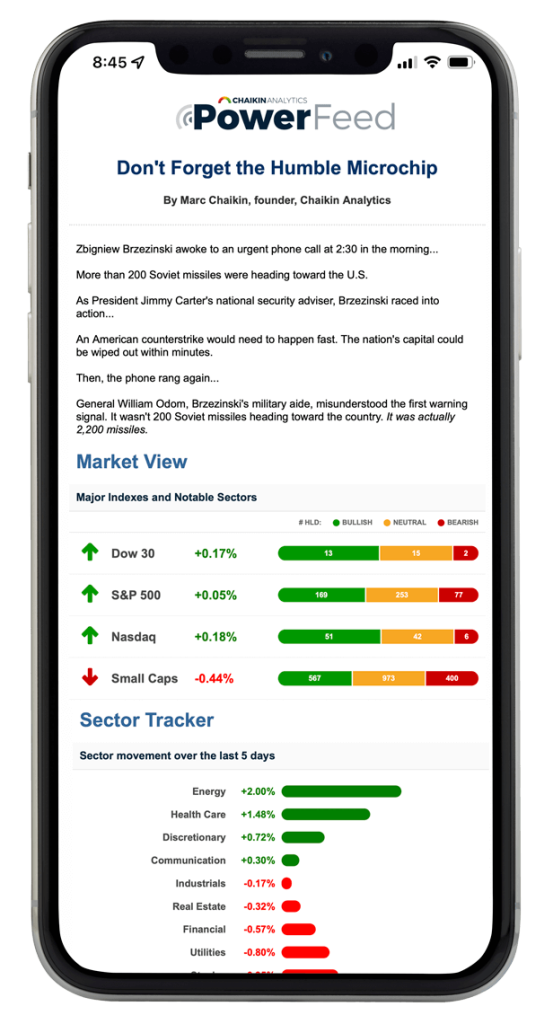
With our Chaikin PowerFeed newsletter, you’ll receive insights from our team of experts, anticipate upcoming market movements, get powerful ideas, visualize sector trends, and more!
Delivered to your e-mail Monday through Friday — 100% FREE.
By entering your email, you agree to subscribe to Chaikin PowerFeed, and will begin receiving occasional marketing messages. You can unsubscribe at any time. Read our privacy policy here.

Powered by One of Wall Street's Greatest Living Legends
Marc Chaikin is one of Wall Street’s greatest living legends – with a career spanning more than 50 years.
His work has been featured in Barron’s, Forbes, Bloomberg, CNBC, Fox Business, and more…
He’s probably most famous for being the inventor of the Chaikin Money Flow Oscillator – one of Wall Street’s most popular indicators which appears on most investing and trading platforms across the world.
Now, Marc and his team help over 1,000,000 people across 148 countries navigate the markets… and they can help you too.

Access A System That Knows
What the "Smart Money" Is Thinking
It’s called the Chaikin Power Gauge stock rating… It’s based on the same rating system Marc Chaikin helped design for professional investors, traders, and analysts on Wall Street and it’s NOW available to you.
Each stock is assigned a rating of Bullish, Neutral, or Bearish… based on the likelihood to outperform (or underperform) the market over the next three to six months… giving you the chance to predict tomorrow’s favorite stocks on Wall Street before most of the institutions and public realize the opportunity.
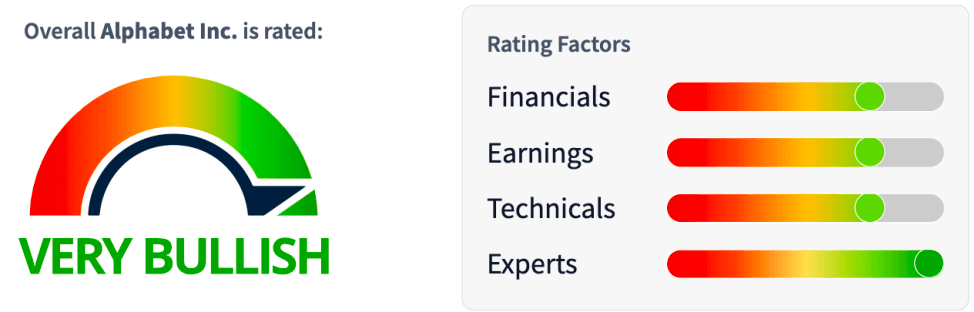
And when a rating changes… it’s your signal that something BIG could be happening to the stock – and it might be time to act.
The Power Gauge is a one-of-a-kind system that provides predictive ratings for more than 5,000 stocks and 2,300 ETFs.

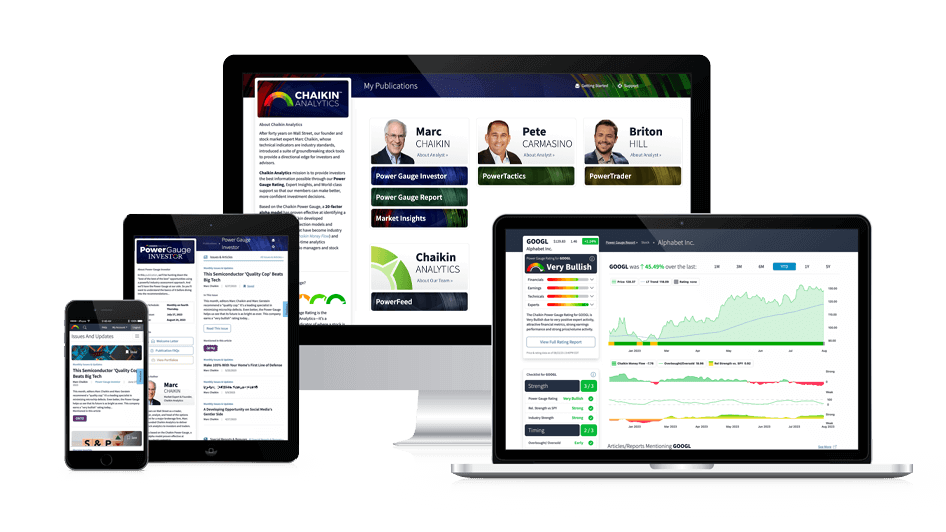
Gain Actionable Insights From Our Team of Experts & Newsletter Solutions

Marc Chaikin
After 50 years on Wall Street as a trader, stockbroker, analyst, and head of the options department for a major brokerage firm, Marc Chaikin founded Chaikin Analytics to deliver proven stock analytics to investors and traders. His work is based on the Chaikin Power Gauge, a 20-factor alpha model proven effective at identifying a stock’s potential.

Pete Carmasino
Pete Carmasino is our chief market strategist at Chaikin Analytics. He has more than 25 years in the financial-services industry.
Pete’s years of knowledge in many different strategies help thousands of our subscribers to decipher the markets… His ability to take complex concepts and break them down into digestible information is a true asset.

Briton Hill
Briton Hill started in the financial world as one of the youngest traders in Fidelity Investments’ history. Eventually, he left Fidelity and co-founded Weber Global Management. At the investment firm, he oversaw a period of incredible growth. Its assets under management climbed from $17 million to more than $150 million in less than three years.
Now, Brit shares his insights and strategies with our Chaikin Analytics subscribers. You’ll see firsthand how he applies his unique perspective to wealth management…
Tap Into Chaikin's Powerful Perspective…
Over 1,000,000 people have signed up to get our FREE PowerFeed newsletter… Sign up now and each trading day, Marc Chaikin and his team will provide you with unique insights from the Power Gauge system.
Delivered to your e-mail Monday through Friday — 100% FREE.
By entering your email, you agree to subscribe to Chaikin PowerFeed, and will begin receiving occasional marketing messages. You can unsubscribe at any time. Read our privacy policy here.

Disclaimer: Chaikin Analytics LLC is not registered as a securities broker-dealer or advisor either with the U.S. Securities and Exchange Commission or with any state securities regulatory authority. Chaikin Analytics does not recommend the purchase of any stock, ETF or advise on the suitability of any trade. The information presented is generic in nature and is not to be construed as an endorsement, recommendation, advice or any offer or solicitation to buy or sell securities or any kind, but solely as information requiring further research as to suitability, accuracy and appropriateness. Users bear sole responsibility for their own stock research and decisions.
Ready to Power Up with Chaikin?
Join thousands of professionals and everyday folks who receive actionable insights from the Chaikin team.
